Digital Scrapbooking App: Compare 4 Ways to Make Your Pages

Choose a digital scrapbooking app by the page you want to make and the device you will use. A laptop editor suits layered papers and detailed captions. A phone app can suit photo grids. If drawing is part of your page, an iPad drawing app deserves a place on your shortlist.
Start here: consider MyScrapBook Studio for arranging scrapbook pages in a browser, Canva for scrapbook designs alongside other design projects, Project Life for grid-style pages on your phone, or Procreate for drawing and painting on iPad.
This guide comes from the makers of MyScrapBook Studio. We used the product pages linked below. We have not tested all four apps. We explain how each app works and give you a test page to help you choose.
Which digital scrapbooking app fits your project?
| Your starting point | App to look at | What to check |
|---|---|---|
| You want to arrange photos, papers and text on a laptop | MyScrapBook Studio | Open a page, adjust a photo and export the result on your computer. |
| You already use Canva for other designs | Canva | Find a scrapbook template you like and check which elements cost extra. |
| Your photos live on your phone and you like divided photo grids | Project Life | Check the app listing for your device, included designs and in-app purchases. |
| You want to draw or paint details around your photos | Procreate | Check iPad compatibility and whether you enjoy building the layout yourself. |
These are different approaches to making a page. The useful comparison is what you can comfortably create and keep, not just the length of a feature list.
MyScrapBook Studio: arrange scrapbook pages in a browser
MyScrapBook Studio is a browser tool for photos, text, papers and shapes. Its workspace has layers, pages and a kit browser. You can explore the how-to library before opening a project.
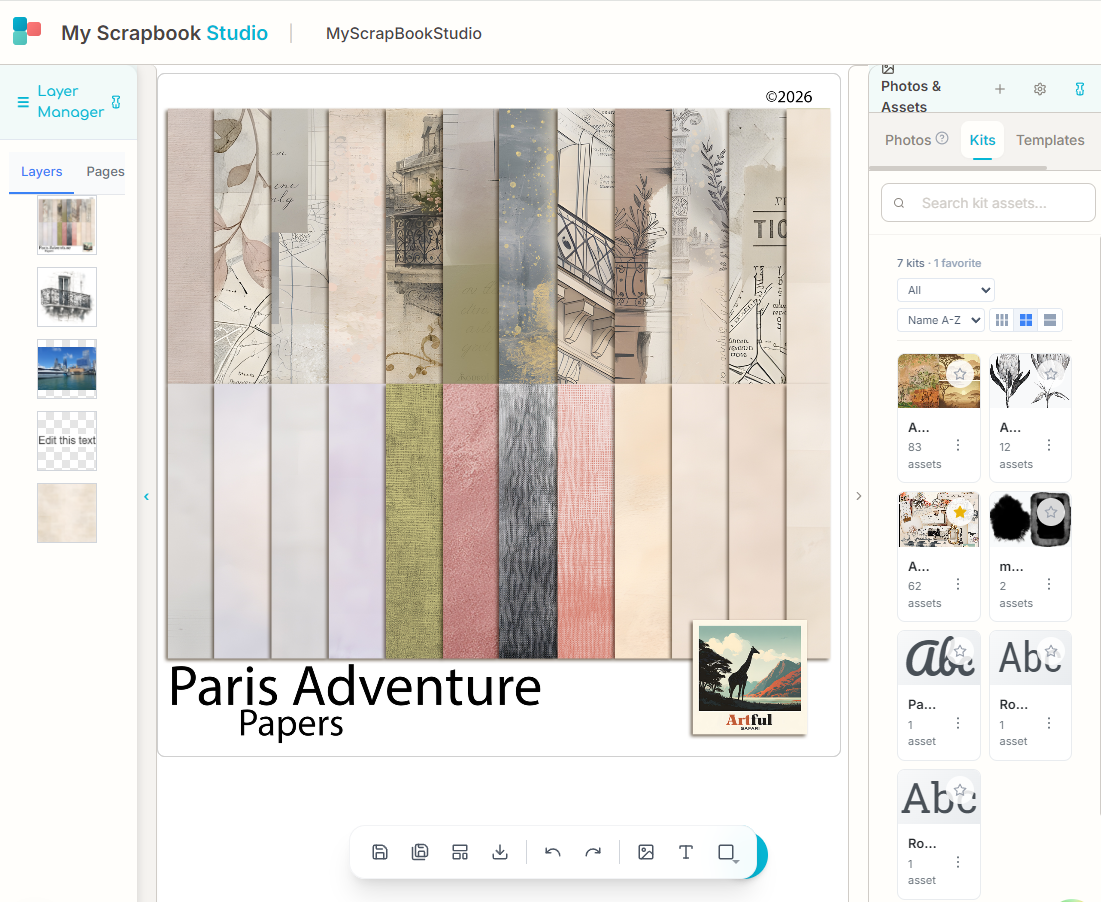
An existing MyScrapBook Studio product screenshot. Layers are on the left. Kits are on the right. This page shows a set of papers. It is not a finished album. The app may now look a bit different.
This helps you keep the photo, background and caption apart, so you can move or change each one. A kit supplies materials; it does not decide which photos tell your story.
Check the current offer on the MyScrapBook Studio home page before signing up. Marketplace kits are sold on their own, so check the listing before buying a design you want to use.
Canva: start with a design template
Canva has an online scrapbook maker with scrapbook templates. If you already use Canva, it may make sense to start there.
Choose a template for its photo layout and readable text, then check the assets it uses. A free account does not mean every template or element is free. Try the download you need before building a whole album around a design.
Project Life: investigate phone-based photo grids
Project Life is a scrapbooking app from Becky Higgins. Its official product page and Android listing show what the app does and what you can buy.
Take a look if you like grids with a space for each photo or card. Use the links to check if it works on your device. The app and paid extras may vary by device and country.
Procreate: draw as part of your layout
Procreate is a drawing and painting app for iPad. Its official beginner lessons show the brushes, colours and gestures that shape the experience.
Try it if you want to draw as part of making a page. Check how you would add photos, write a caption and save the page. If you want a ready-made album layout, start with one of the other apps.
Give each shortlisted app the same page to make
Use the same subject in each app. Choose a small event, such as a family lunch, and use the same three photos in each app you try. Add the date and one sentence about something the photos do not show.
The diagram below is a layout suggestion, not an app screenshot or a tested output. The large photo sets the scene; the smaller ones hold details. Leave space for the written memory before adding details.
| Main photo The people or place | Detail photo |
| Another detail | |
| Date and place A sentence about what happened outside the frame. | |
Example layout: one main photo, two details and a space for the memory.
Try these actions before deciding:
- Bring in your photos. Check that you can find the files from the device or service you actually use.
- Arrange the page. Move a photo, change its size and check whether the crop hides anything important.
- Add readable text. Include a date and caption, then view the page at a size you plan to use. You still need to be able to read fancy fonts.
- Save and reopen the project. Check that you can still edit the page and you can find it again.
- Export a copy. Open the exported file outside the app. Check the photos, text, page size and any watermark.
If you intend to print, check the printer or print service's rules before choosing your page size. A page that looks attractive on a phone can still have text that is too small on paper.
For help choosing the photos, use our photo organization guide. If you already have a design in mind, browse digital scrapbook templates.
What should you check before paying?
Look beyond the price of opening the app. Check whether the designs you want, the number of pages you need and the file you want to save are included. Read the current plan or app-store listing and the terms for papers or templates you buy.
Keep an editable project and an exported copy if the app lets you save both. The project lets you change the page. The export is a file you can view or share outside the app.
Questions about choosing a digital scrapbooking app
What is a digital scrapbooking app?
It is software for arranging photos, text, papers and shapes into scrapbook pages. Some apps focus on set layouts; others offer a canvas where you place everything yourself. Check how to save work you can change later and how to export a finished page.
Can I use Canva for digital scrapbooking?
Yes. Canva offers scrapbook templates through its scrapbook maker. Check the template, included assets and download options you intend to use. If you know its controls, that can be a reason to choose it.
Should I choose a phone app or a browser editor?
Use the device you plan to make pages on. A phone keeps your camera roll close; a laptop gives you more room to inspect photos and writing. Make and reopen a sample page on that device before you start a whole album.
How do I start in MyScrapBook Studio?
Open MyScrapBook Studio and follow the steps to sign in and start a page. Keep the first project to one page, then use the how-to library for the controls you need. Check the saved project and exported result before adding the rest of your album.
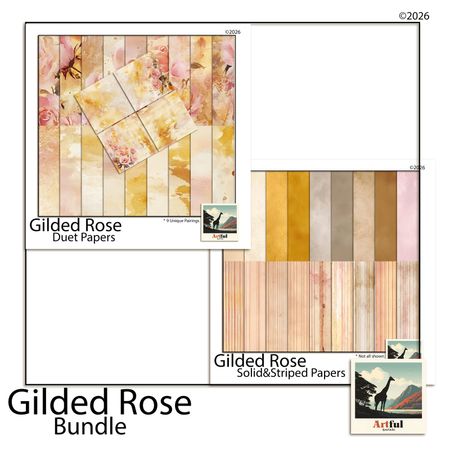
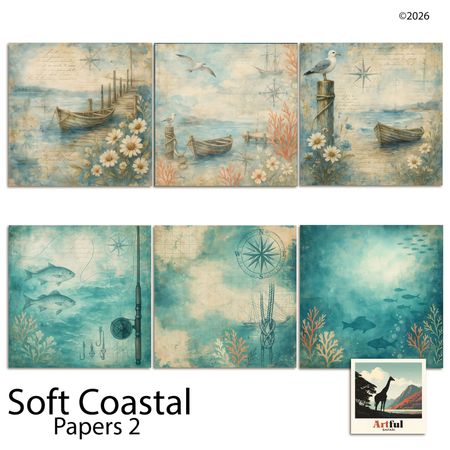
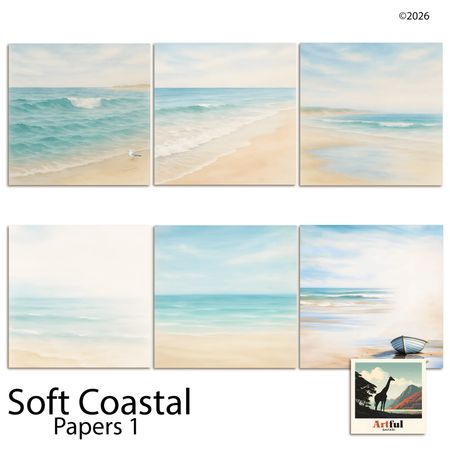
Related Kits
Kits from creators in our marketplace that match this article.
Related guides
Can You Print a Digital Scrapbook? Costs, Sizes + Best Services
Can you print a digital scrapbook? Yes — export pages at 300 DPI and upload to Mixbook, Shutterfly, or Blurb. Costs, sizes, and file settings explained.
Canva vs Scrapbooking Software: Fine for a Page, Wrong for an Album
Canva vs scrapbooking software: Canva handles one-off pages but has no spread view or 12×12 canvas. Where it breaks down for albums, and what to use instead.
Blurb BookSmart Alternative: Where to Go Now That BookSmart Is Gone
BookSmart is deprecated. BookWright migration breaks fonts and photos. If your scrapbook library is stranded in Blurb, here's where to go next.
Vision Board Maker: Build a Digital Board in 15 Minutes
A vision board maker turns vague goals into a board you actually look at. Compare 5 free tools, then build your own digital board in 15 minutes.